Server Auction BETA v1.0
Server Auction BETA v1.0
Server Auction House — User Guide
Server Auction House brings a real-time auction market to Farming Simulator 25. You can put your own tractors, harvesters and tools for sale or bid on equipment advertised by other server players and virtual bots.
Controls and Shortcuts
Open the Auction Panel: Press the K key (standard keyboard) at any time during the game.
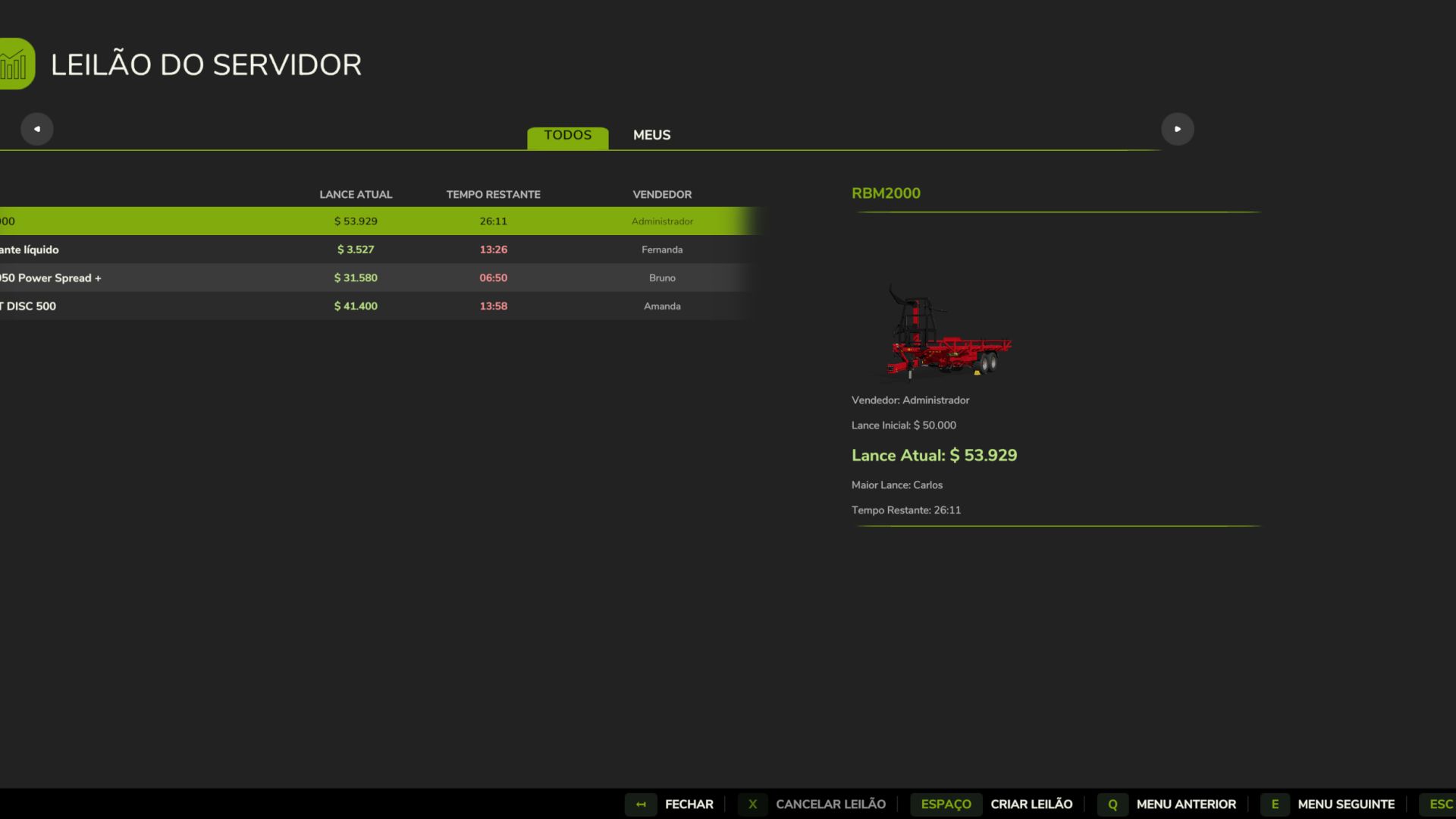
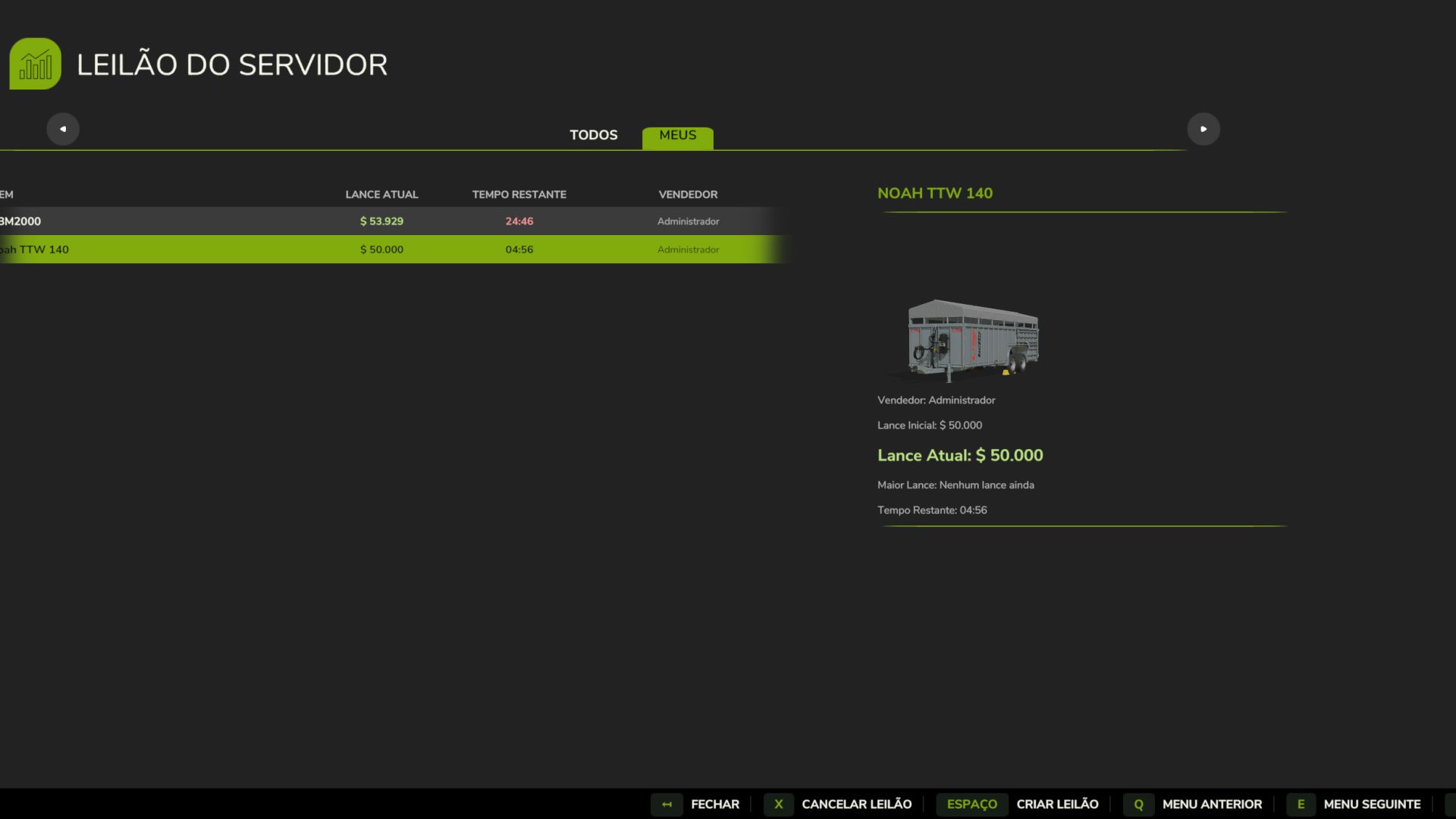
Navigate the Interface: Use the mouse to select active auctions in the list on the left, view details on the right or use the buttons in the bottom menu.
How to Play (Gameplay)
1. Create an Auction (Sell)
Open the auction panel by pressing K.
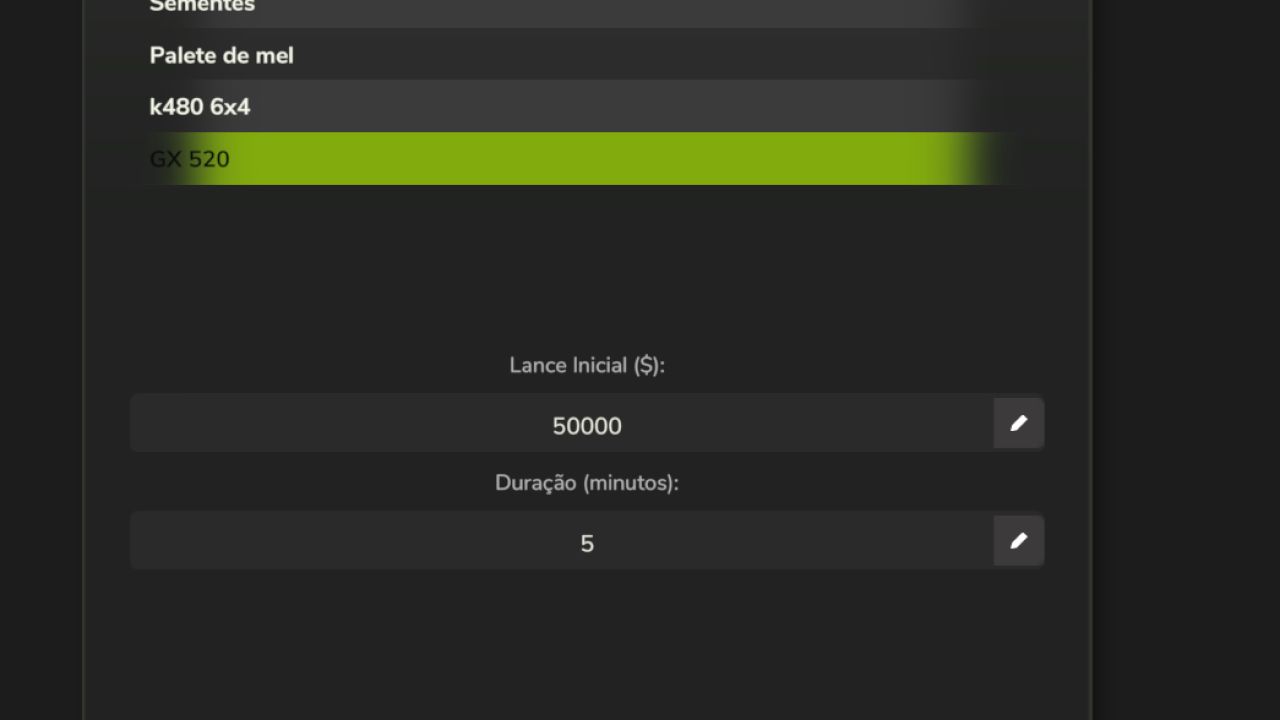
Click the Create Auction button (in the bottom menu).
Select your farm vehicle/tool from the list.
Choose the Starting Price (Minimum Bid) and Duration (time that the auction will be active).
Confirm. The item will leave your farm immediately and will be listed for bidding.
WARNING
Security Rule: After an auction receives the first bid (whether from a player or a virtual bot), it can no longer be canceled by the seller. This ensures a fair market for those bidding.
2. Bid (Buy)
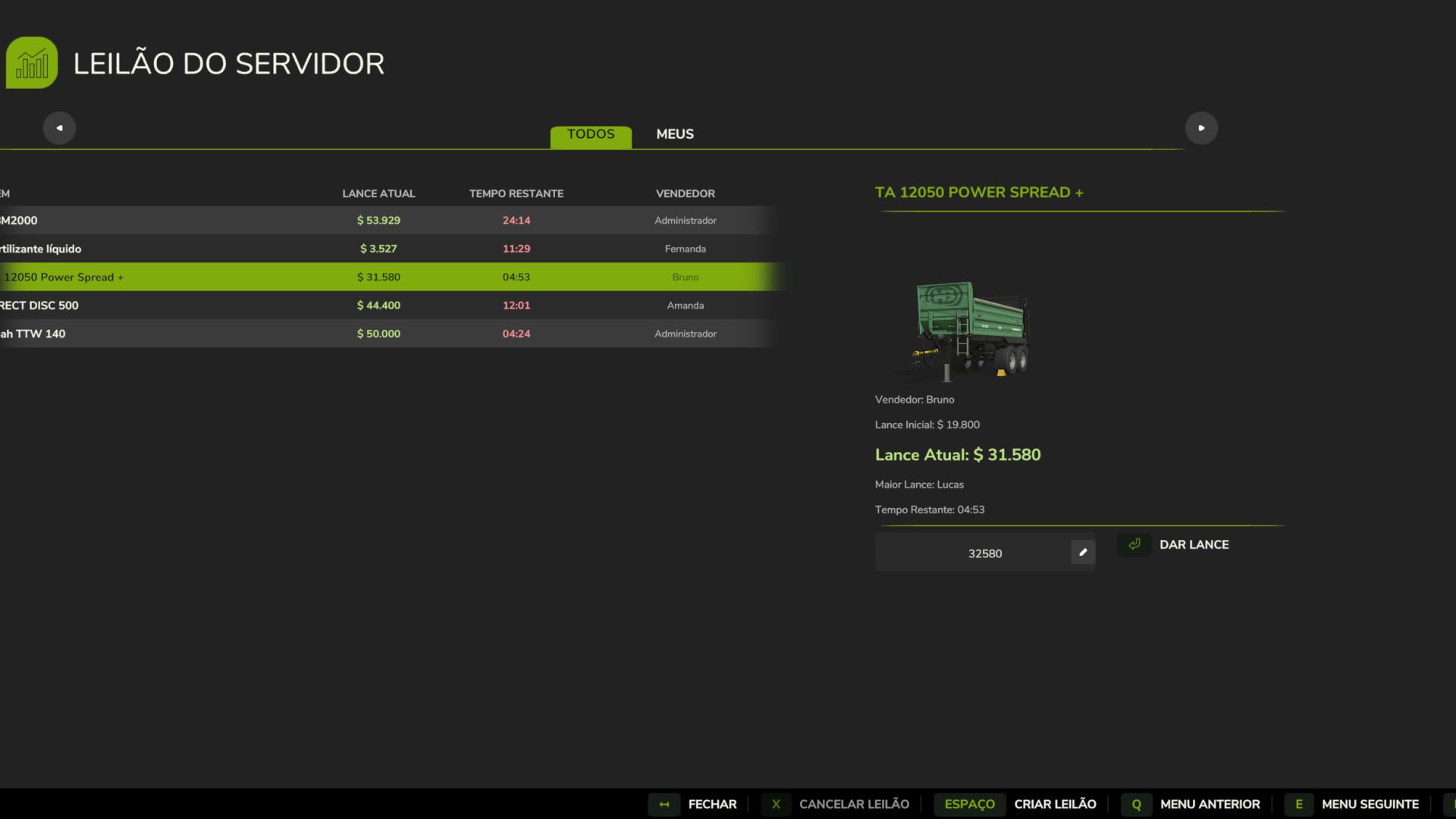
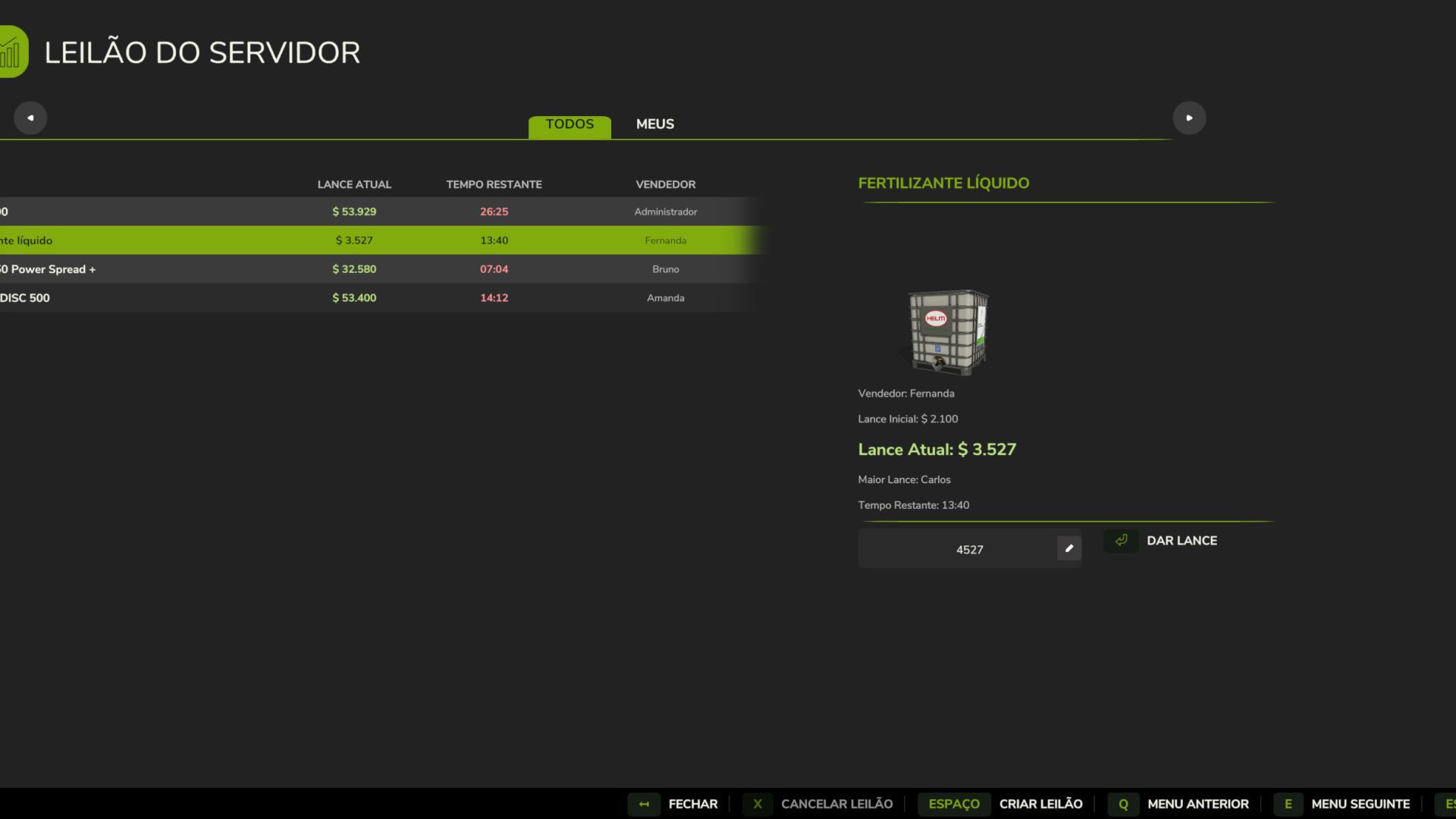
Select an item from the active auction list to see its detailed information in the right pane (seller, current bid, time remaining, and a photo of the equipment).
The text field will automatically display the next minimum bid amount.
Click Bid to register your offer.
If time runs out and you are the highest bidder, the item is yours!
Server Settings (Enable/Disable Bots)
The mod adds a special control section within the game’s general settings menu (In-Game Settings).
Enable/Disable Bots: Server administrators can turn on or off bids and auctions created by Artificial Intelligence.
On: Bots create auctions of random used items and compete by bidding on players’ items.
Off: The auction will operate exclusively between real players on the server.
Important Note (Spawn Warning)
IMPORTANT
Delivery of Won Items: Currently, when you win an auction, the purchased vehicle or equipment appears (spawns) directly in the position where your character is standing.
This is a temporary limitation and this behavior will be corrected in future updates so that items appear in the official store’s delivery zone or designated locations.
Author: Anderson BOB