Pickup Plus v1.4.1.5
Pickup Plus v1.4.1.5
Pickup Plus 1.4.1.5
GUI hooks now receive all arguments and return values, and they exit “move mode” cleanly.
Custom key or controller bindings for maintenance take precedence over the Caps Lock fallback.
Strap logic for pallets now accounts for the specific strap anchor point; when a strap is consumed, only the relevant connection is released.
Testing: 470 automated test groups passed, plus 18 combination test groups covering the three actual HUD sources, along with 15 GUI test groups.
Pickup Plus introduces normal wear and tear, overload damage, and blockages to balers and forage wagons.
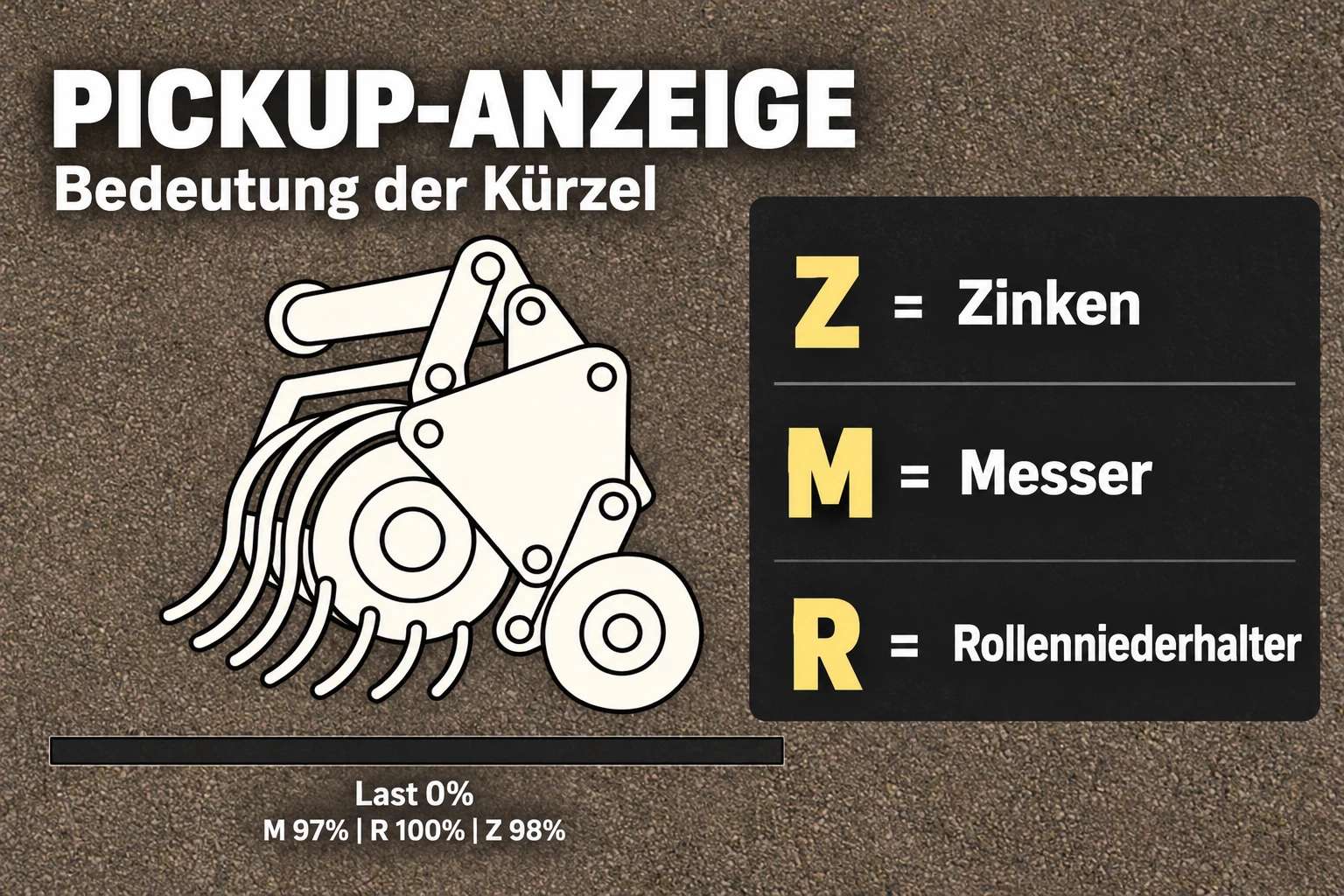
Knives, pickup tines, and roller crop presses (windrow press rollers) wear down during material intake.
Excessive operating speeds and high material throughput increase the risk of blockages.
Once the intake load reaches 70%, the vehicle combination will begin to slow down.
In the event of a blockage, material intake stops until the machine has been cleared.
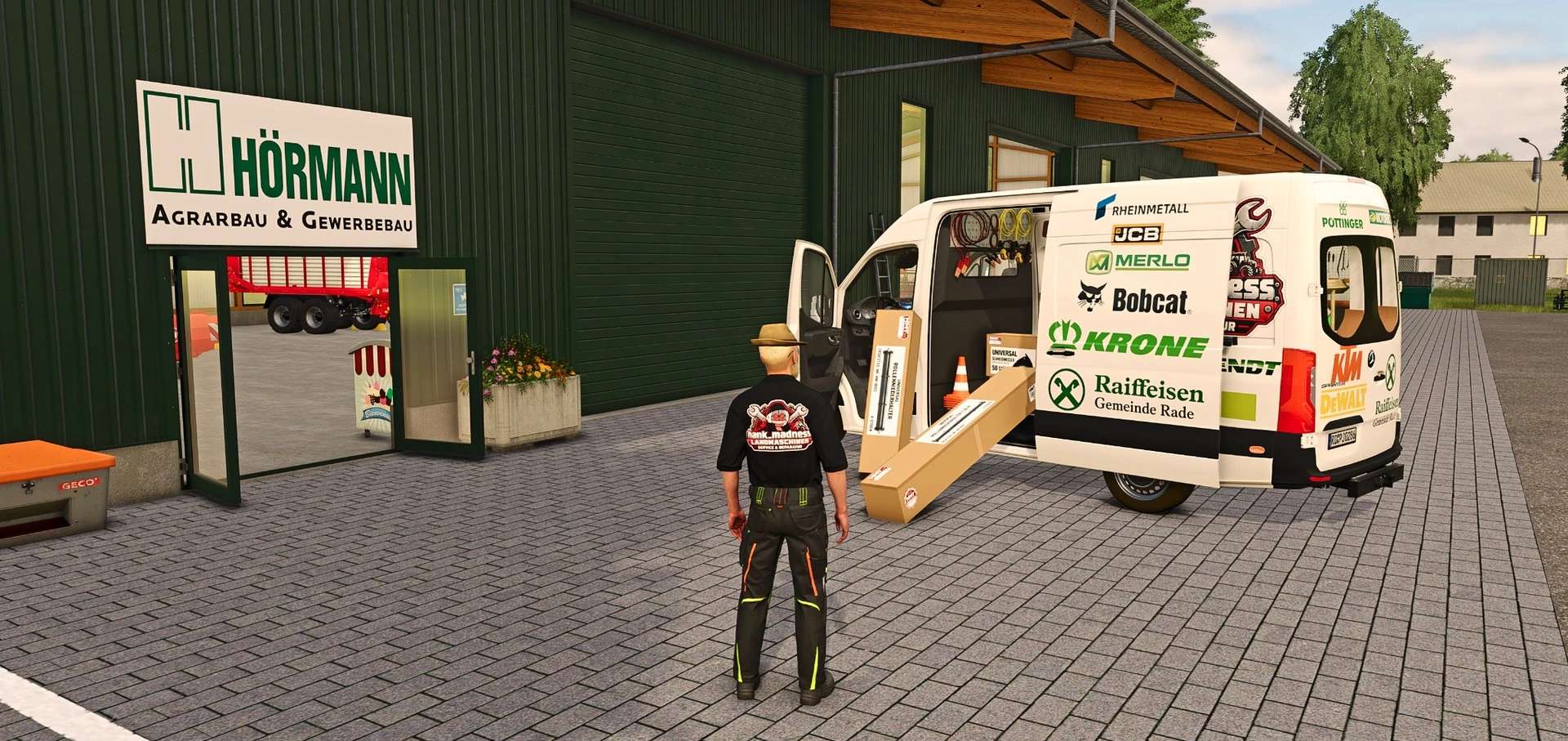
You can find the appropriate spare parts boxes in the dedicated “HMT Spare Parts” shop category.
Place them near the machine—which must be parked and switched off—to perform maintenance. Knives and tines are consumed proportionally based on the amount of wear.
Any remaining parts stay in the box; empty boxes disappear.
The HUD displays load levels and the condition of components. It can be repositioned, hidden, and set to one of four different sizes.
Boxes containing 50 knives, 100 tines, or 4 roller crop press components.
Two visual variants for the roller crop press.
Purchase quantities ranging from 1 to 5 boxes.
Maintenance and clearing of blockages via Ctrl + Alt + Caps Lock.
For single-player use.
Controls (as of version 1.4.1.4)
Operation is performed while driving a vehicle combination equipped with a compatible baler or forage wagon. The selected, compatible implement is prioritized; otherwise, the first suitable machine detected is used. This operation is not available while on foot. Please close any open menus before proceeding.
Default Key Bindings – HUD: Left Ctrl + Left Alt + 3: Show or hide the HUD. Left Ctrl + Left Alt + 4: Toggle repositioning mode; drag the visible HUD by holding the left mouse button. Camera and zoom controls are disabled while this mode is active. Hiding the HUD, opening a menu, switching vehicles, or changing the map will exit repositioning mode.
Default Key Bindings – HUD Size: Left Ctrl + Left Alt + 5: Cycle through HUD sizes (50% → 25% → 20% → 75% of the speedometer width).
Default Key Bindings – Maintenance (always active): Ctrl + Alt + Caps Lock: Start maintenance, or cancel an ongoing maintenance procedure without consuming any parts. This key combination accepts either the left or right Ctrl/Alt keys. Maintenance can be performed even when the HUD is hidden.
To perform maintenance, come to a stop and switch off the implement; the tractor engine may remain running. To replace parts, appropriate spare-part boxes or pallets belonging to the same farm—containing sufficient stock—must be located within five meters of the machine. Multiple boxes or pallets can be used in combination.
A blockage is cleared first—taking eight seconds and requiring no spare parts. Following this, the most worn group of components that can be serviced with available spare parts is replaced over a 20-second period. Additional groups can be serviced subsequently. Blades and tines are consumed in proportion to their wear; a worn roller-type crop press requires one spare part.
Parts are only consumed once the process is successfully completed. Pressing the key again, moving the vehicle, or turning it on will cancel the maintenance process; in the case of replacing parts, this also results in the loss of the necessary replacement components. Simply changing the selection or switching to a different vehicle does not automatically end an ongoing maintenance procedure.
Customizable Key Bindings: The three HUD actions can be freely assigned under Options → Controls. There is also an additional, customizable action for maintenance that does not come with a default key binding. Any existing user-defined key bindings will remain in place. The fixed key combination Ctrl + Alt + Caps Lock remains active regardless of these settings.
Support: For information, questions, or to report bugs, please use the FBM support thread.
CVT Note: The reported issue remains open and has not yet been reproducible. If it occurs again, please provide the full `log.txt` file along with a brief description of the situation.
Author: hank_madness_[HMT]